
DisplayWall is a program designed to display different websites on multiple monitors using Chromium. Its purpose is to make it easy to manage content across several displays connected to a single computer.
Background
Several years ago, our elementary school had a dedicated computer connected to a television that displayed a PowerPoint presentation maintained by the vice principal. Since updating the presentation was time-consuming, it wasn’t updated very often, and eventually the computer stopped working.
Some time later, we decided to bring the idea back. Since desktop computers are now quite rare at the school but there are plenty of monitors available, we decided to put those monitors to good use. By connecting multiple monitors to a single computer using USB-to-VGA adapters, we created a simple “display wall.”
Why was the program created?
I searched the internet for software that could:
- Display different content independently on each monitor.
- Automatically scroll through content to the bottom and then start again from the top.
- Open websites in a modern web browser.
- Be simple and easy to use.
I couldn’t find a free program that met all of these requirements, so I decided to develop one myself.
How to use it
To use DisplayWall, you will need:
- Windows
- an internet connection
- multiple monitors connected to a single computer
- Windows configured so that:
- the monitors never turn off,
- automatic user login is enabled,
- DisplayWall starts automatically when Windows starts.
After installing the program, you will see the window below with no configured content.
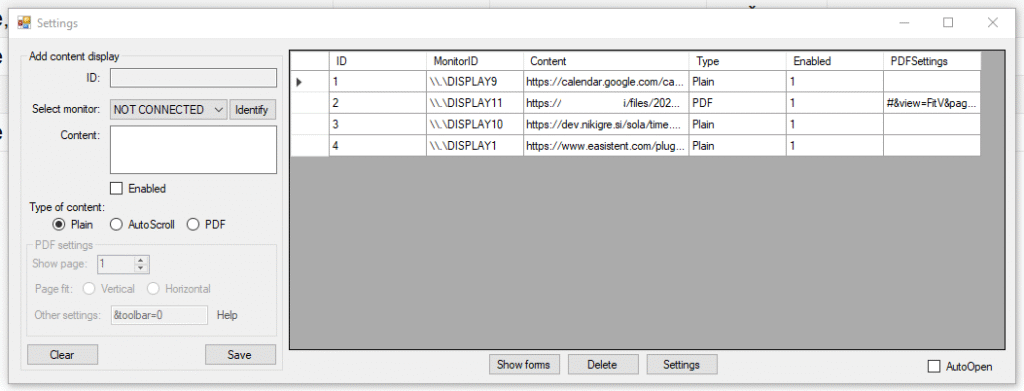
On the left side, you can add new content, while the right side shows the current configuration. To add new content, configure the following options:
- Select monitor – Choose the monitor on which you want to display the content. Next to the selection is an Identify button that displays the unique name of each connected monitor directly on the screens.
- Content – Enter the URL of the website you want to display.
- Type of content – Choose how the content should be displayed:
- Plain – Simply displays the webpage,
- AutoScroll – automatically scrolls the page to the bottom and then returns to the top,
- PDF – Displays a PDF document. Additional options include:
- Show page – select the page to display,
- Page fit – choose how the page should fit the screen,
- Other settings – Additional PDF viewer settings (see the PDF documentation for details).
- Type of content – Choose how the content should be displayed:
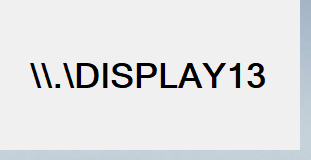
The Identify function displays the unique name of each monitor directly on every screen, making it easy to determine which monitor is which.

A settings icon is available in the bottom-right corner of every display. Clicking it opens the configuration window, allowing you to edit or add new content.
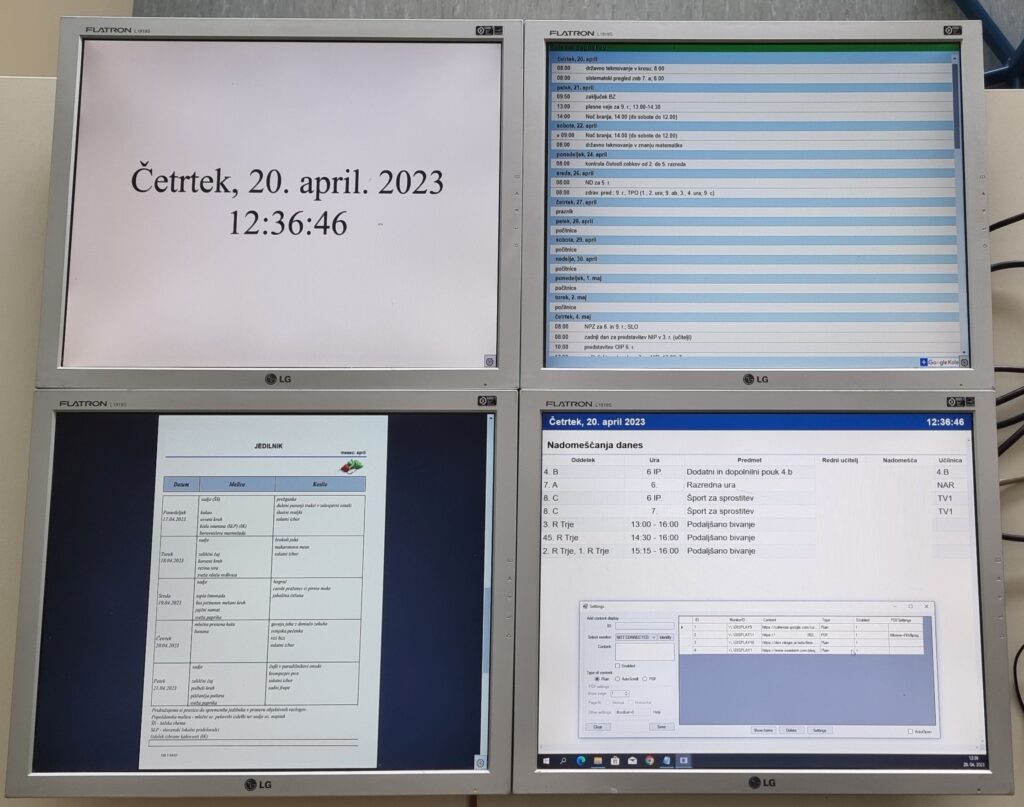
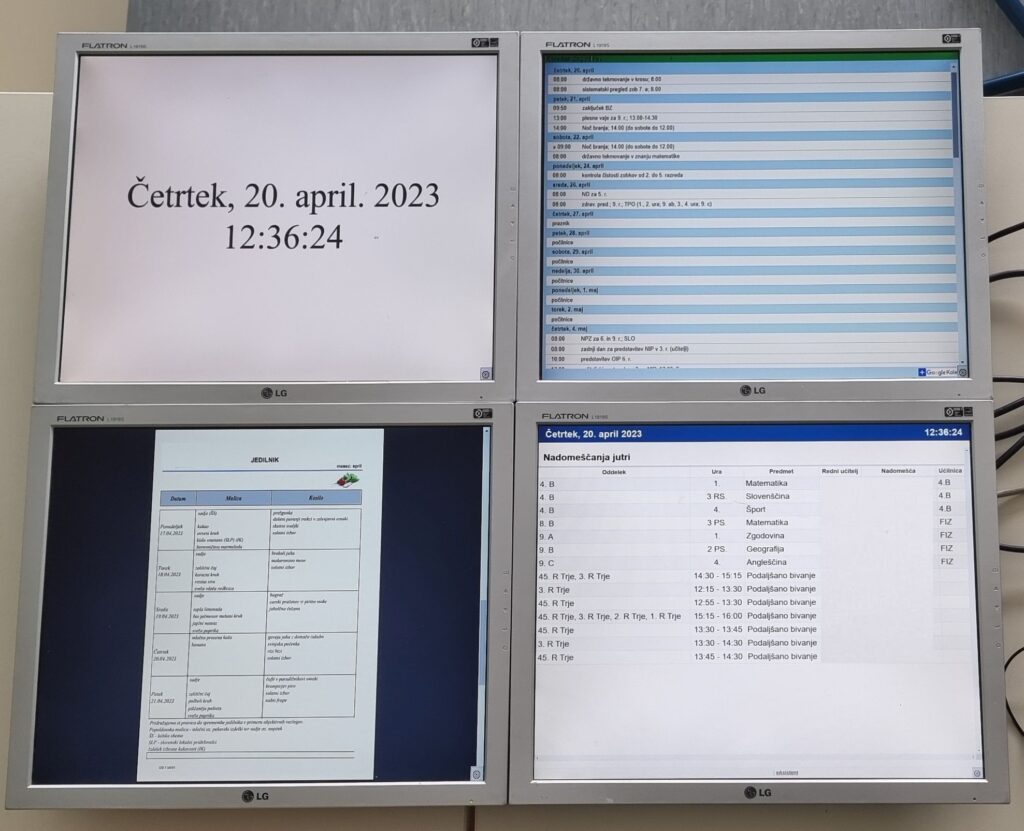
DisplayWall in action
Download
Download DisplayWall: here
Verzija: 1.0
Feedback
If you have any suggestions or ideas for improvements, I would be happy to hear them. You can contact me at nik (at) nikigre.si. Thank you! 😀